Reading the IN7 Game Install Screens: What Each Button Actually Says
An Android install dialog can feel like it appears and disappears in a blink, and if English is not your first language, the fast-moving labels make it worse. One wrong tap and you are back at the home screen wondering what you agreed to. This walkthrough translates the screens you meet while setting up the In7 game app, one label at a time, so you always know what the button in front of you actually means.
The short answer: most install screens use a small set of repeated words, and once you learn roughly a dozen of them, the whole process becomes predictable. Below, each section follows what you see on the phone, from the first warning to the final launch button, with plain-language meanings for every term that matters.
Before You Tap Anything: The First Screen You Meet
When you open an APK file on Android, the first thing you usually see is a security notice rather than an install button. The phone is telling you that the file did not come from the Play Store, which is a normal message for any direct download. It is not a virus warning and it is not an accusation.
The two labels on this screen are usually Cancel and Settings. Cancel closes the dialog and changes nothing. Settings takes you to the permission page where you allow your browser or file manager to install apps. If you are not ready, tap Cancel; nothing is lost and you can start again later.
Words you will see on this first screen
- Unknown sources — apps that come from outside the official store.
- Allow from this source — a switch that grants one app permission to install files.
- Restricted setting — a newer Android label for the same switch, sometimes locked for security.
- Install unknown apps — the page title where that switch lives.
If the switch is greyed out, your phone has extra protection enabled. The message usually names the app that controls it, and you may need to confirm your screen lock before the toggle becomes usable.
The Permission Page: What Each Toggle Is Asking
Once the source is allowed, the install screen shows a list of permissions the app may request. Reading these is the most useful literacy exercise in the whole process, because the words describe real capabilities rather than vague warnings. A typical list includes storage, network access, notifications, and sometimes vibration or wake lock.
Storage or files means the app can read or write data on your device, usually to save game progress or cache. Network access means it can connect to the internet, which any online game needs. Notifications lets it send alerts, and you can turn these off later in system settings without breaking the app.
Labels that often confuse non-native readers
- Photos and media — access to images, not a request to delete them.
- Wi-Fi connection information — the app can see whether you are online.
- Prevent phone from sleeping — keeps the screen awake during play.
- Run at startup — the app may open in the background after a restart.
If a permission feels unrelated to a game, that is a fair reason to pause. You can still finish the install and then review permissions later in Settings, where each one has a simple on-off switch.
The Install Button and the Progress Screen
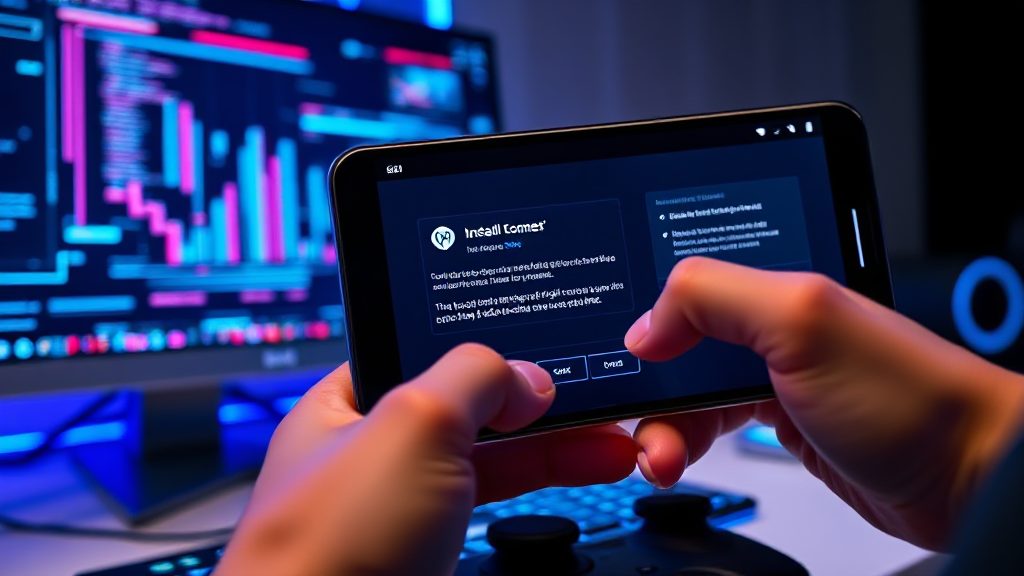
After permissions, you reach the screen most people recognise. The main button is labelled Install, and beside it sits Cancel. Tapping Install begins the copy process; tapping Cancel stops it. There is no hidden third option, and the button does not charge you anything.
During installation, the progress bar may show words like Installing, Verifying, or Optimising. These describe what the phone is doing with the file: copying it, checking its signature, and preparing it to run. A slow bar is usually a slow phone, not a broken download.
If something goes wrong, the error words mean this
- App not installed — the file is incomplete or conflicts with an existing copy.
- Package appears to be invalid — the download was corrupted; download it again.
- Blocked by Play Protect — the phone’s scanner flagged the file; check the source before continuing.
- Insufficient storage — free up space and retry.
None of these messages requires technical knowledge. Each one points to a single practical action: re-download, free space, or review the source.
After Install: Open, Done, and the First Launch
When the bar finishes, the button changes to Open, and a second button labelled Done appears. Open launches the app immediately; Done closes the installer and returns you to the home screen. Both are safe, and the app stays installed either way.
On first launch, you may see Allow and Deny for a permission request, or While using the app instead of a simple yes. Choosing the narrower option is usually enough for a game. If you tap Deny by mistake, the app will ask again the next time it needs that feature.
This is also the moment to check that the app you installed matches the one described on the In7 game information page. A quick look at the app name, icon, and version number confirms you have the right file before you invest time in it.
A Short Vocabulary Sidebar for Install Screens
Keep these meanings nearby the next time a dialog opens. They cover most of the words you will meet across Android versions and phone brands.
| Label you see | Plain meaning |
|---|---|
| Install | Start copying the app onto your phone |
| Open | Launch the app now |
| Done | Close this screen; the app is already installed |
| Allow | Grant the permission being requested |
| Deny | Refuse the permission; the app may ask again later |
| Unknown sources | Apps from outside the official store |
| Package | The installable file itself |
| Verify | Check the file’s signature for safety |
Two habits make these words easier: read the button before the paragraph, and never tap a label you cannot explain. If a screen uses a word not on this list, the back gesture is always available and costs nothing.
Common Mistakes When Reading These Screens
The most frequent error is tapping the largest button without reading it, which on some phones is the permission toggle rather than Install. Take one extra second to find the word that matches the action you want.
Another common mistake is confusing Allow with Install. Allow grants a capability; Install copies the file. They appear on different screens and do different things, and mixing them up leads to permissions you did not intend to give.
Finally, some readers assume an English warning means danger. Most install messages are neutral descriptions, not alarms. A warning becomes a real concern only when it names a specific risk, such as a blocked file or a signature mismatch, and even then the fix is usually a fresh download.
If you ever feel unsure, stop at the screen, note the exact word, and look it up before continuing. The install process waits for you; it does not time out while you read.
Frequently Asked Questions
What does the Install button actually do?
It copies the downloaded file onto your phone and registers the app so it can run. It does not open the app; that happens when you tap Open afterwards.
Is Allow the same as Install?
No. Allow grants a permission such as storage or notifications, while Install copies the app itself. They appear on separate screens and have separate effects.
What should I do if a screen uses a word I do not understand?
Use the back gesture or tap Cancel, then look up the word before returning. Nothing is lost by leaving an install screen, and you can restart the process from the file whenever you are ready.
Why does my phone show a warning before installing?
Android shows that notice for any app that does not come from the official store. It is a standard reminder, not a sign that the file is harmful, though you should still confirm you downloaded it from a source you trust.